# Schedules

In cases where the pipeline should be run periodically, for example, to extract data daily, Schedules can be created.

### Create a Schedule

* Select the desired transformations to be run.
* Choose a name for the Schedule.
* Click the **Create** button in the Schedule panel.

{% hint style="info" %}
Please note that only users with the [EDITOR](/platform/user-roles.md#editor) role or higher are authorized to create new schedules.
{% endhint %}

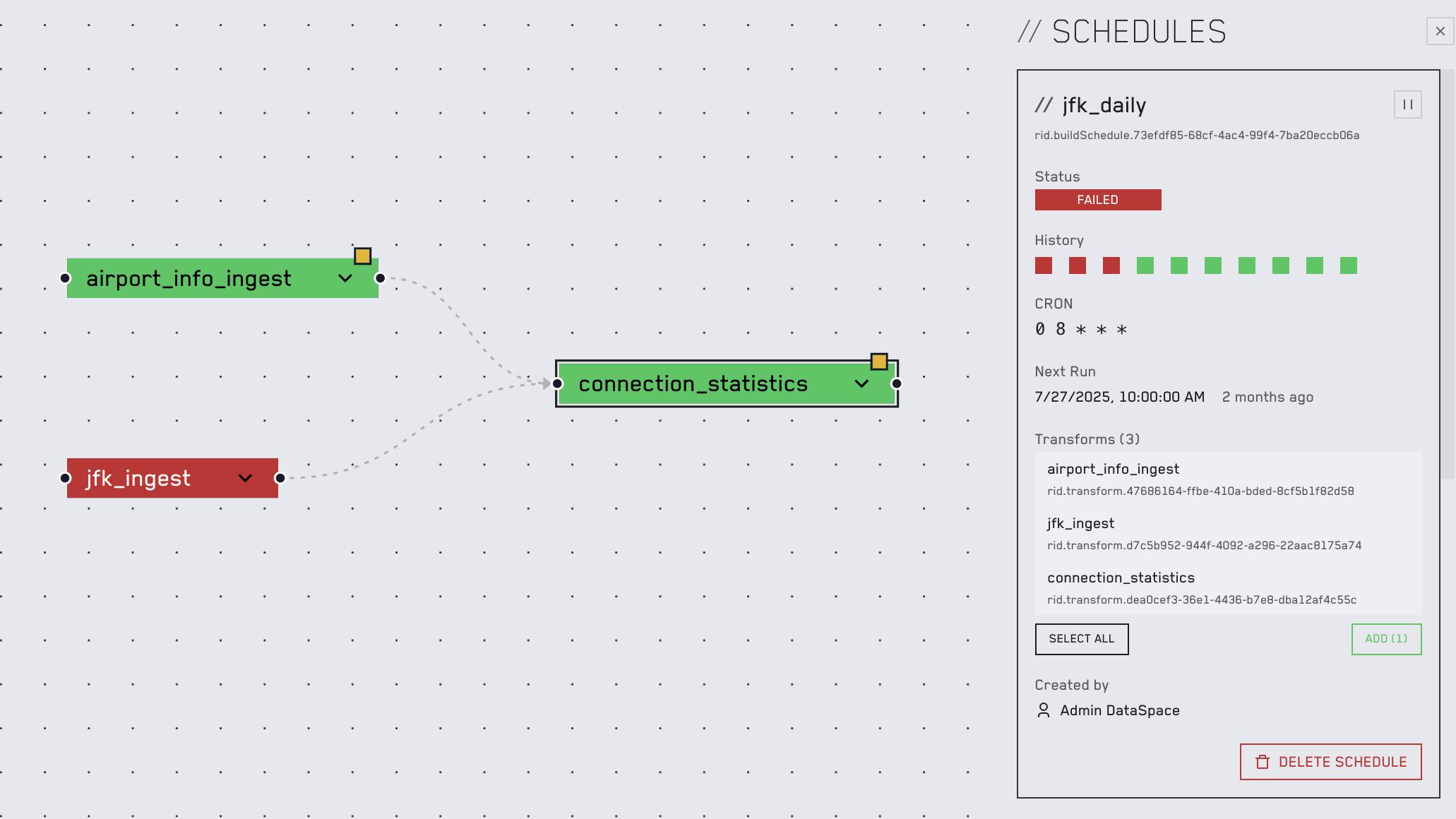
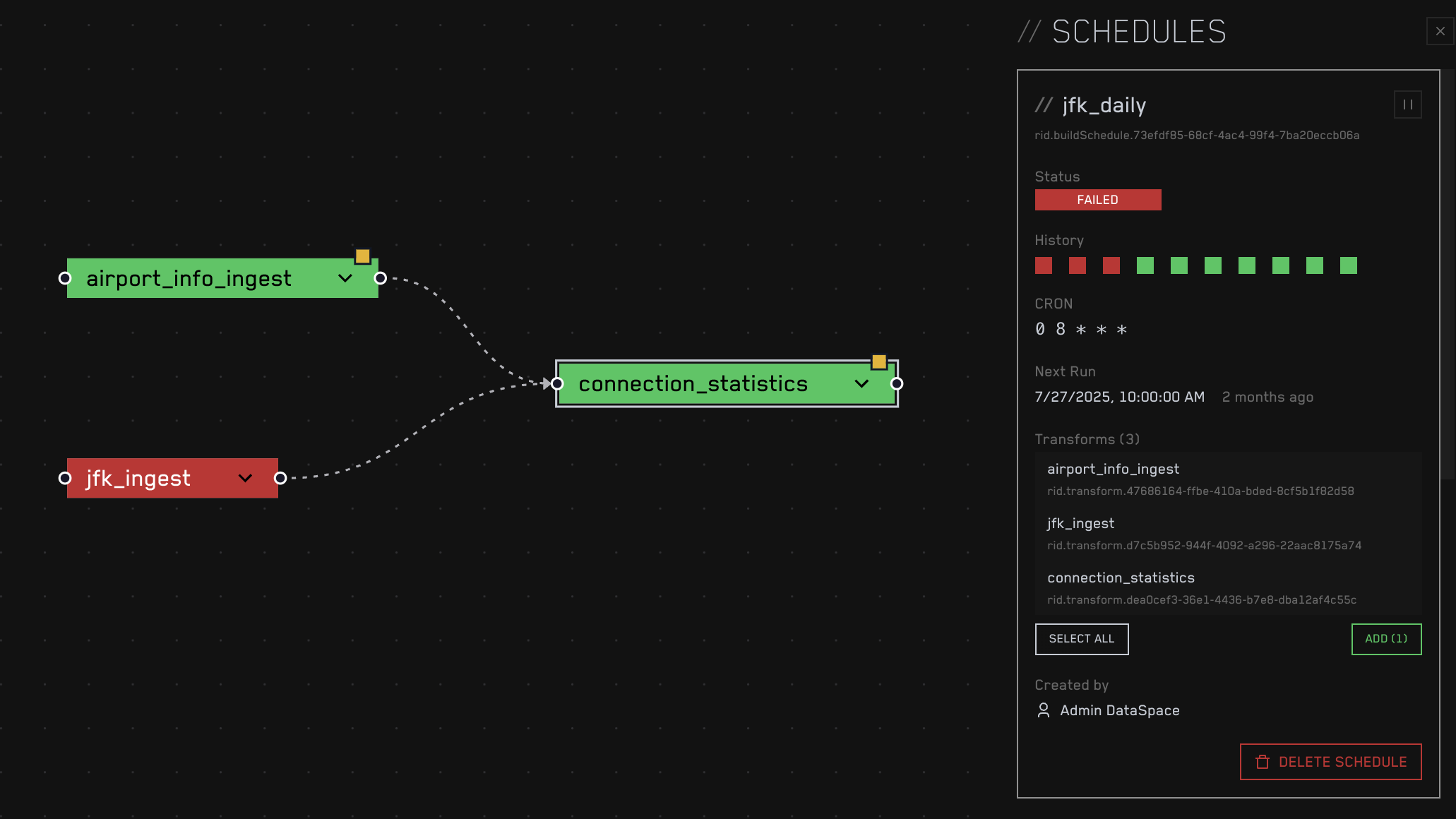
<figure><picture><source srcset="/files/1EJXTSH4kehAVzi3nSRj" media="(prefers-color-scheme: dark)"><img src="/files/miRGbktwFHlJ58XJMvL1" alt="Schedule View"></picture><figcaption></figcaption></figure>

After a schedule is created, certain properties can be modified.

### Schedule Name

The Schedule can be renamed by double-clicking on the Schedule name.

### Pause/Resume

The button next to the Schedule name allows the schedule to be deactivated without deleting the entire Schedule.

### Cron

The Cron value specifies the frequency of the run and is based on the standard cron notation. For more information, see the [wiki article](https://de.wikipedia.org/wiki/Cron).

### Next Run

Next Run displays the next time this schedule will run.

### Transforms

The transforms panel inside the Schedule widget shows all target transforms that are associated with the current Schedule. Here, transforms can be added or removed.

{% hint style="info" %}
Before a schedule executes, the list of target transforms is evaluated as a DAG and executed sequentially according to the dependency graph.
{% endhint %}

## Failing Schedules

To prevent unnecessary resource waste, the Schedules will be disabled after 3 consecutive build failures, and the creator of the schedule will be notified via email.

{% hint style="info" %}
This behavior can be adjusted with the `MAX_SCHEDULE_FAIL_COUNT` property in the `.env` file.
{% endhint %}


---

# Agent Instructions: Querying This Documentation

If you need additional information that is not directly available in this page, you can query the documentation dynamically by asking a question.

Perform an HTTP GET request on the current page URL with the `ask` query parameter:

```
GET https://docs.dataspace.ch/platform/schedules.md?ask=<question>
```

The question should be specific, self-contained, and written in natural language.
The response will contain a direct answer to the question and relevant excerpts and sources from the documentation.

Use this mechanism when the answer is not explicitly present in the current page, you need clarification or additional context, or you want to retrieve related documentation sections.